Issues and projects
Work in Dispatch is a set of issues, grouped into projects. A project has a short key, such
as CORE, and its issues are numbered under it: CORE-1, CORE-2.
Projects
Section titled “Projects”The sidebar lists every project with its count of open asks. You create a project in
Settings → Projects with a key and a name, and an agent creates one with dispatch project.
Every project also names a default assignee, the person its unowned work lands on: a project you
create takes you, and an agent’s dispatch project --default-assignee <email> names the person
it is for.
A key that is already taken is refused, whoever asks.
A project page has up to three tabs:
- Issues: the project’s issues, as a List or a Board.
- Documents: the project’s documents that belong to no single issue. Pick or drop a file here to upload it.
- Architecture: the project’s components and how much tracked work each has. This tab appears only when the project has an architecture source, which you add in Settings → Architecture sources.
Opening a project from the sidebar takes you to Architecture when the project has a source, and to Issues otherwise. When an ask in the project is waiting on you — its next move a person’s, and you are the person it waits on — the header shows a Blocked on you · N pill that links to the Inbox. It counts no credential request: a request belongs to no project.
A project’s components can come from more than one repository. Each architecture source is one
repository and the branch whose .dispatch/architecture/ folder describes components, and the
project’s model is every source’s components together. In Settings → Architecture sources,
Add source takes the project, the repository and the branch; saving a repository the project
already has changes its branch, and each source’s row has its own Refresh and Delete.
Deleting a source removes its components and no other source’s. A component id must not repeat
across a project’s sources: an import that brings an id another source already has fails for that
source, naming the id and the repository that holds it.
The Architecture tab’s header has a line for each source: its repository and branch, the commit it shows, when it was last checked, and its own Refresh. When a source’s import fails, its line shows the error and the commit it is still showing; its components keep their last good version and wear a hatched outline, as a stale source’s do, and every other source is untouched. A component’s details name the repository it comes from.
Statuses
Section titled “Statuses”Every issue has one of nine statuses, in this order:
Triage → Icebox → Backlog → Todo → In progress → Testing → Needs review → Retro → Done
An open issue’s Status menu offers every status except Done. Close issue is the way into Done, and a closed issue offers Reopen, which puts it back in Backlog.
A closed issue still takes comments and messages, from people and agents: a comment, a reply, a reply on an ask, a comment on a quote of one of its documents, and a message to an agent all post, and a mentioned agent is still told and can answer. Everything else waits for Reopen: a new ask, an answer to an ask, a suggestion, a document edit or named version, an upload, a review or approval request, a claim, and resolving, reopening, editing, accepting or rejecting a comment already there. Its priority, labels and other fields wait for it too, except its place on the Board and its components; a linked GitHub issue or pull request can be taken off it, not added.
Legion, when it works an issue, moves that issue’s status itself.
The List and the Board
Section titled “The List and the Board”The List and Board buttons switch between two views of the same issues. Press v to
toggle. Dispatch remembers your choice.
The List is a sortable table, initially ordered by Queue, with Done excluded.
Queue numbers are the waiting order of Todo issues labelled legion, using the Board’s rank order.
Click a column heading to sort; hold Shift to add another sort column.
Use Group by for status, priority, epic, assignee, created by, claimed by, or an age band.
An epic is an open root issue labelled epic.
It is an ordinary row of the table — searchable, filterable, selectable, editable — except while you group by epic, where it is its group’s linked heading rather than a row inside it.
The table scrolls vertically and horizontally inside its own box. Its header stays visible. On phones Select, Key and Title stay pinned within 85% of the box, so a title reads as words; Priority and the other columns scroll sideways. Title narrows and keeps its two-line clamp, even with saved desktop widths. The box has room for at least three full issue rows; on compact windows, scroll the page to reach the table and its pager. Drag a header edge to resize a column, double-click it to reset its width, or drag a header to reorder columns. Columns hides or shows optional columns; widths, order and visibility are remembered per project. Choose 25, 50, 100, 250 or All rows per page. A page starting inside a group repeats that group’s heading.
The horizontally scrollable status strip above the table shows full lifecycle labels and counts; every segment is a touch-sized button. Click a segment to filter to that status.
It counts what is loaded, so with closed issues unloaded it shows no Done segment at all.
Open issues load first; Done loads when the Status filter includes it or is cleared.
The open rows and filters stay usable while Done loads, or if that read fails; Retry asks again.
Until Done has loaded, its filter option says so instead of claiming there are no closed issues.
Clear filters also clears Needs you and Unread.
Tick rows to open a floating action bar: Start next, Move to epic…, Take out of epic, or New epic from these.
Press x to select or deselect the row your keys are on; the search bar then acts on what you have selected, and leaving the table clears it.
An issue the table stops listing drops out of the selection, so a row listed again comes back unselected.
On phones the bar stays in one horizontally scrollable row above the project content, so it cannot cover the table or pager.
Select all N matching includes rows beyond the current page.
Start next moves queued selections ahead of the rest of Legion’s waiting line, keeping their queue order.
Each rank change waits for the previous one. A refusal stops the later changes, and the notice identifies every issue that did not move up.
Selecting every queued row says they already start next rather than doing nothing.
An epic group’s Epic actions can rename it, merge its open work into another epic and close it with a reason, or start all its queued issues next, including those hidden by filters.
Merge moves open direct children and open descendants reached through only closed intermediates. It posts the reason and closes the source only after every move succeeds; otherwise the source stays open and the notice identifies the failed moves.
Closed issues keep their original parent and history.
Move, Take out and New epic skip selected closed issues and report how many were skipped; New epic requires at least one open selection.
Naming and renaming an epic happen in a dialog in the page, like creating an issue.
If a new epic may duplicate another issue, Create anyway is an explicit choice.
If Dispatch created the epic but lost its answer, the table says so and leaves the selected issues in place rather than guessing the new epic’s key.
Independent bulk changes register together and finish independently, at most eight requests at a time. Each refused request stays in the shell’s pending-writes indicator and has its own Retry; it does not hold the others.
Reload restores requests already registered. New epic registers its parent changes only after the create answers; merge registers its reason and close only after its moves succeed.
Changes made in another tab or by another person appear live without reloading. Selection and the row being read stay in place when a live update inserts rows above it. The Board keeps its own rank order within each status; sorting the table does not reorder the Board.
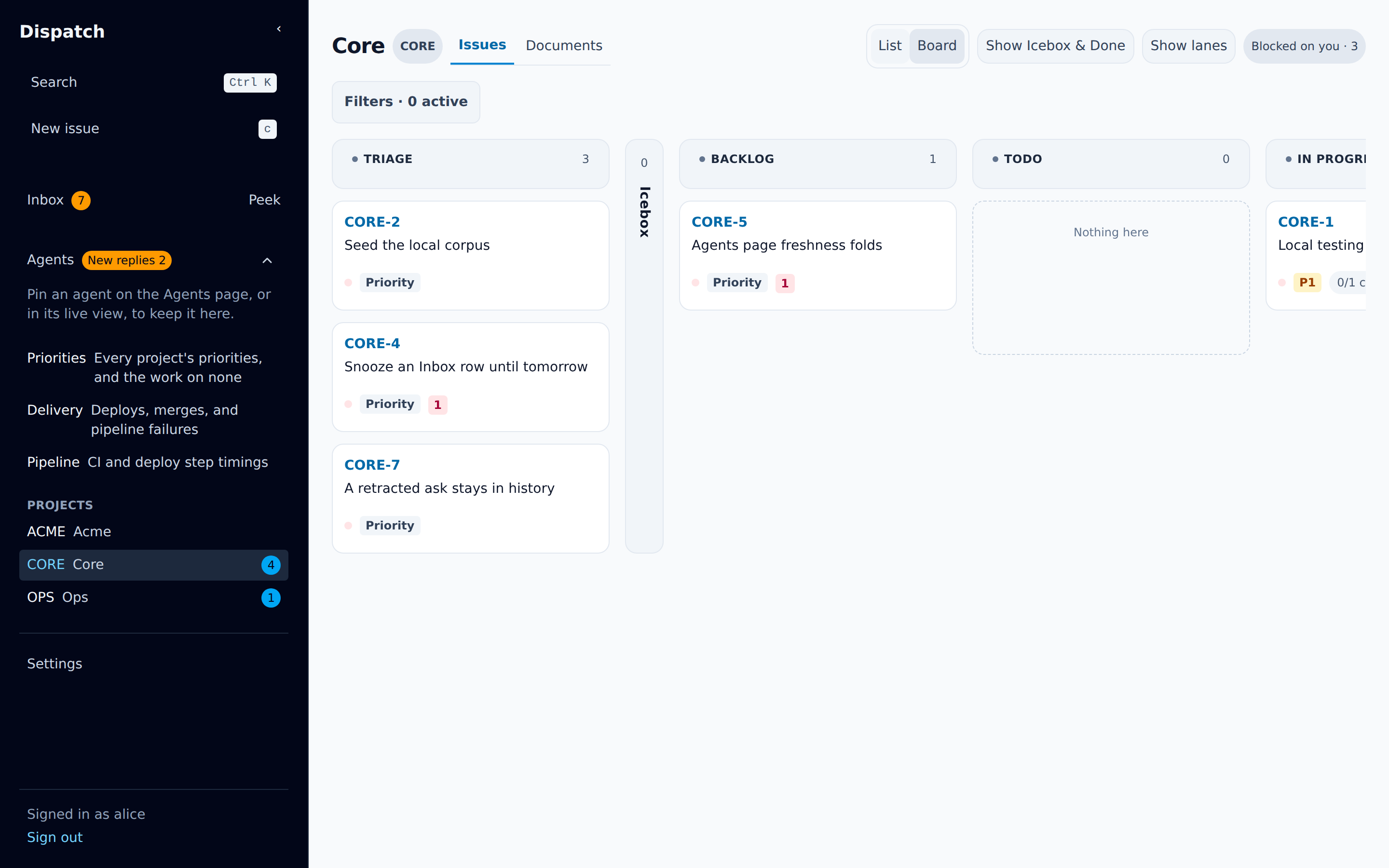
Moving cards
Section titled “Moving cards”The Board has a column per status. Drag a card to reorder it or to change its status:
- With a mouse, press and move the card.
- On a touch screen, hold the card briefly, then drag. A quick tap opens the issue, and a swipe scrolls.
- With the keyboard, focus a card and press
Shift+JorShift+Kto move it down or up, andShift+LorShift+Hto move it to the next or previous status.
Dropping a card in Done closes the issue. Moving it out of Done reopens it.
Icebox and Done start as narrow folded columns. They still take drops. Show Icebox & Done opens them in full, and Dispatch remembers that choice.
If someone else moved cards while you were dragging, the move fails with “The board changed while you were moving this card - refreshed, try again.” The Board shows the fresh order.
Show lanes, beside Show Icebox & Done, splits the Board into horizontal bands, one per priority: P0 down to P3, then a band for issues with no priority. Cards keep their rank order within each band. The choice persists per signed-in user, not in the page address, so it survives a reload.
Dragging a card across lanes sets its priority, in the same drop that a drag across columns sets
its status. Keyboard roving (j/k, the arrow keys) stays within the focused lane.
Priority
Section titled “Priority”Priority runs from P0, the highest, to P3. An issue with no priority shows a muted Priority tag. The badge is a picker wherever it appears: the issue header, a Board card, a List row, and an Inbox row. Choose it and pick a value. Closed issues cannot change priority.
Assignee
Section titled “Assignee”The assignee is the person every ask on the issue waits on until somebody hands that ask to another person, and whose Inbox lists those asks. An issue nobody holds leaves its asks on the project’s default assignee, so every ask reaches somebody. Change it from the issue header. The choices are Unassigned and every login allowed to sign in. An agent that creates an issue without naming one gets the person its token acts for, else the parent’s assignee, else the project’s default assignee: the person you name in the projects table in Settings → Projects, who takes every issue the chain leaves without an owner. Every project names one, so every new issue has an assignee. A person moves a project’s default on that page, and an agent names the first one in the call that creates the project.
Labels
Section titled “Labels”Choose Labels in the issue header to edit an issue’s labels. The list offers every label used in the project, and you can create a new one from the search box. Your changes save when the list closes.
Filters
Section titled “Filters”In the List, each column’s filter button opens a searchable list of values and their matching counts. Title instead takes a typed, case-insensitive text filter. Values selected in one column match any of them, except Labels, which uses all-of matching: an issue must carry every picked label, compared case-insensitively in both List and Board. Different columns narrow one another. Each option count applies the search and every other column’s filter, not its own column’s picks. The Search issues box matches every word across keys, titles, epics, assignees, creators, claim holders and labels. A word of five or more characters can be one edit away.
The Board keeps the Filters strip: Labels requires every selected label, and Search matches keys and titles.
The List and Board share Needs you (open asks) and Unread (unseen activity).
The List folds unclaimed work into its Claimed by column: its Nobody or lapsed value lists the issues nobody holds plus those whose claim the server would hand over. The Board keeps its Unclaimed chip, and both read the same unclaimed=1 address parameter.
The Board’s active-filter chips remove individual picks.
Filters, table sort, grouping, search and page live in the address, so a reload or shared link restores them.
An issue an agent is implementing shows Claimed by and the agent’s name, which opens its
live view. The claim holds while that agent’s session is
live, and while it is unresponsive with a last registration less than 20 minutes old: an
unresponsive session has missed its registration window but is still working, and its issue stays
claimed. The chip then reads unresponsive since the moment the session was last seen, and
names the moment the issue becomes takeable, 20 minutes after that one. Another agent’s take is
refused until then, naming the same moment; you can take it yourself at any time. From that
moment the chip reads takeable now in the tone of a free issue, and the List’s Nobody or
lapsed value (the Board’s Unclaimed chip) lists the issue, while the session is still drawn
as unresponsive, because it has not ended and
may yet answer. A session that reads gone is unclaimed at once: its
running mark is a hollow ring and the chip
reads not running.
Creating an issue
Section titled “Creating an issue”Press c anywhere. Pick the project, type a title of up to 1,000 characters, and optionally the
first line of the spec. A short moment after you stop typing the title, Dispatch lists the items
it already holds on the same subject — issues, asks, comments, messages and documents — each a
link that opens in a new tab, so your draft stays as you left it. When it searched and found
nothing it says so, and when it could not search at all it says that instead, with the words to
search for yourself. If the title closely matches an existing issue in the project, Dispatch
shows that issue and offers Create anyway. A new issue opens as soon as it is created.
The issue page
Section titled “The issue page”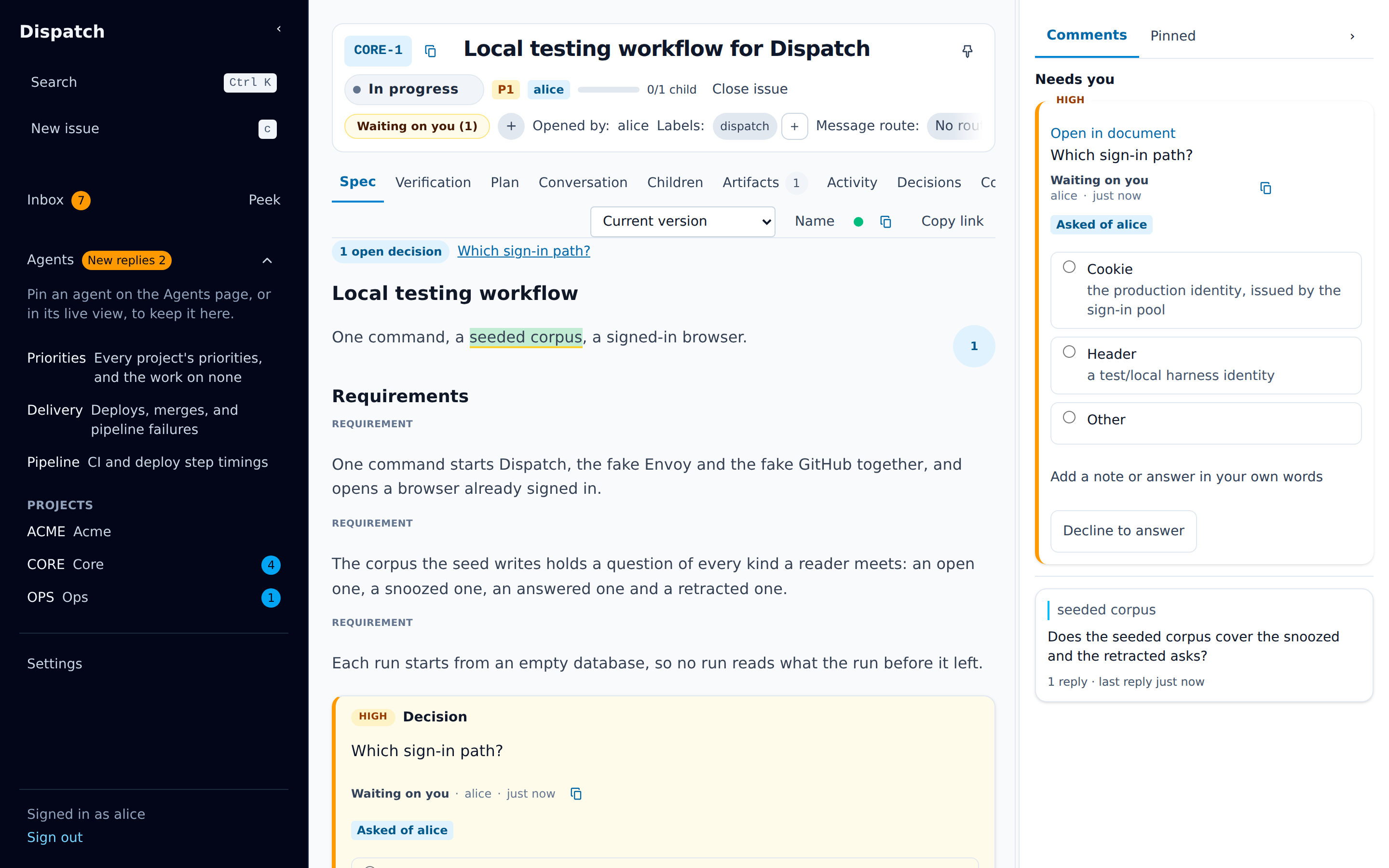
The header
Section titled “The header”The header holds the issue’s key, title, and pin, then its controls:
- Status, priority, and assignee.
- An approval chip once someone has asked for the spec to be approved.
- Close issue, or Reopen on a closed issue.
- Whose turn it is:
Waiting on you (N)orWaiting on agents (N), counting the issue’s open asks.
A line of details follows: labels, subscribers, the parent issue, linked GitHub issues and pull
requests, and Referenced by. Choose the title, or press e, to edit it.
A title shows in full, wrapped at any width, rather than cut off after two lines. A list that still clamps a title shows the whole of it on hover.
- Parent shows the parent issue or None. You can edit it to move the issue under another.
- Subscribers: N lists the agent sessions subscribed to the issue. Unsubscribe stops delivery to one and tells it so.
- Referenced by (N) lists every issue, document, ask, comment, and message that links here.
- Components appears when the project has an architecture source. It shows which parts of the architecture the issue belongs to, and lets you change them, picking from the components of every source of the project.
Changes Dispatch has not confirmed
Section titled “Changes Dispatch has not confirmed”Every change you make — a status, a priority, an assignee, labels, a pin, an answer to an ask, a comment, a comment resolved, an upload — is sent under a name of its own, and Dispatch makes it once under that name however many times the page asks. So a change tried again after a lost answer, a timeout or an outage lands exactly once, and the page keeps asking while your connection is down, and again at once when Dispatch is reachable again; while Dispatch keeps answering the change with an error, or the change keeps failing on its way while the rest of Dispatch answers, the tries spread out, up to 30 seconds apart; when Dispatch answers that it is too busy and says how long to leave it, the page waits exactly that, for a change and for what the page reads alike. A change Dispatch is slow to finish is waited for and made once, and an upload still going up is never cut off, however long a slow link takes.
A corner of the screen accounts for the ones still out: Saving 2 changes…, and once one has gone 30 seconds unconfirmed, Dispatch has not confirmed 2 changes — still trying, with Stop trying beside each. An upload still going up reads Uploading… 40% instead, and never still trying unless a try has failed. A change waiting behind an earlier one that has not gone out yet reads Waiting to send, with Discard. A change Dispatch refuses shows its reason where you made it, with Retry, when that place is a form or a field you are in front of: a comment, an answer, the title, the priority, the assignee, the repository, the components, a new issue. A quick control such as Status, Labels or a pin shows your choice while it is out, puts itself back as it was if it is refused, and the corner lists the change as Not saved: … with why, Retry and Discard. Changes to one issue go out in the order you made them, a card moved on the board among them. While any change is unconfirmed the browser asks you to confirm before you leave or reload the page, and a change a reload interrupted, an upload’s file included, is picked up again when the page comes back, in the order you made them, for the person who made it and for nobody else: a change pending when someone else signs in at that browser, in this tab or another, is dropped unsent. If your sign-in lapses, your changes wait, and go out once you sign in again: the sign-in page lists them under Kept until you sign in again as …, a refused one with Discard, and its sign-in link leaves the page without asking. Signing out asks you first, listing each change it would discard, in this tab and in your other Dispatch tabs (when a tab does not answer at once, it says it would also discard any unsent changes in your other Dispatch tabs), and discards nothing until Dispatch has signed you out: meanwhile none of your changes goes out in any tab (another tab’s read Waiting for a sign-out in another tab), and if the sign-out fails you stay signed in with every change, told The sign-out did not go through. If that tab closes before it can say how the sign-out ended, the others ask Dispatch who is signed in: signed out, your changes go there too, as the sign-out said they would; still signed in, they go out again within seconds. One interrupted more than five minutes ago is not sent on its own: the corner lists it as Not saved: … with Retry and Discard. A Retry of a stopped or interrupted change asks again under its first name, so it is saved at most once if you retry within 24 hours of the first try; after that Dispatch no longer knows the name, and the change may be made twice. The corner says so.
A closed issue takes no upload: the Artifacts tab’s Upload says This issue is closed. Reopen it to upload. and picks no file, no key opens a file picker there, and a file dropped on it is ignored.
Now and then Dispatch makes a change but its answer is lost on the way back. The change is made; the page says so (for example The issue “…” was made, but Dispatch lost its answer, so it may take a moment to appear.) and clears the form, so pressing again makes nothing twice. A new agent token made that way has lost its value with the answer. The page looks for the tokens of that label made since you pressed New token and offers to revoke it and mint another in its place; if it finds more than one, you pick which, and every revoke asks you to confirm first, since agents using it stop working at once.
The tabs
Section titled “The tabs”- Spec is the issue’s main document. Documents covers it. Under
the document the spec’s requirements are listed, each flagged with what it lacks: a requirement
no check serves reads
has no check, and one no plan task serves readshas no plan taskonce the issue has a plan document. - Verification is the issue’s Verification document and, under it, each check the document marks, with every result recorded against that check, newest first. Each check says whether a pass stands and from which roles, and names what Dispatch compared the results with: each head of the issue’s pull requests for a before-merge check, the branches for the other two kinds, or the reason there is nothing to compare with, which is that the issue has no pull request and no branch, or that Dispatch could not read the repository. Each result carries the whole commit, the reading its role recorded, whether that commit is one of the compared commits, and whether the check’s words moved after the result was recorded. A retracted result shows as retracted with its reason, and counts as no evidence.
- Plan is the issue’s plan document, the plan review’s approval, and each plan task the document marks, with the requirements that task serves and the tasks it needs.
- Conversation is the issue’s conversations, one card each: every ask with its replies and its answer, every comment thread with its replies, every message thread with its replies. The conversation with the newest reply is at the top, so a thread rises when someone answers it, and the whole list is there however old a conversation is. All, Open and Closed filter it: an ask is Closed once it is answered, resolved or retracted, a comment thread once it is resolved or its suggestion is accepted or rejected, and a message thread is never closed. The filter opens on All every visit. A conversation holding something you have not read is marked New, and Jump to latest counts those and takes you to the top.
- Children lists the issue’s child issues, each with its status, how much of its own tree is done, and its latest activity.
- Artifacts lists the issue’s documents and files, with a count. Pick a file, or drop one on the tab, add an optional summary, and choose Upload. Uploading a file with the same name adds a new version.
- Activity is the issue’s whole history, one line each, newest first: every comment, ask and message as it was posted, and everything else that happened to the issue — status moves, claims, document versions, uploads, subscriptions, changes to child issues. It has Load older at the bottom, a divider for each day, and a mark where your last read ends.
- Decisions is a view of the issue’s
decisions.md, in order: the open questions its spec asks, the agent decisions waiting for your review, each with Keep and Change, your own decisions, and the ones since replaced. Each decision links the spec blocks it shaped. - Collaborators lists everyone who has worked the issue: Legion’s agents by role, each role’s newest session first and a superseded session naming the one that replaced it; then every other agent session, the most recently active first; then the people, with why each is a collaborator and when they last worked it. Every agent is one click from its conversation and shows whether it is running. When Legion’s record of this issue’s agents cannot be read, the tab says so instead of listing nothing. An issue nobody has worked reads No one has worked this issue yet.
Press t and then s, k, p, c, h, a, v, d, or o to switch to Spec, Verification,
Plan, Conversation, Children, Artifacts, Activity, Decisions, or Collaborators.
An issue with no Verification document, or no plan document, shows on that tab the
dispatch artifact command that makes one.
Writing in the Conversation
Section titled “Writing in the Conversation”The box at the foot of the Conversation posts a comment on the issue, on a closed issue too: its
composers, Reply on a message and a delivery’s Retry all work there, and you can still
comment on a quote of its documents: select the text and choose Comment, the one action the
selection bar offers on a closed issue’s document, and the comment opens in the margin. Type @
to mention an agent role or a live agent session; the comment is then delivered to it. The picker
also offers, under Not running, this issue’s Legion roles that no running agent holds; a
mention picked there is addressed to the role, and the comment is posted on the issue, but its
delivery fails while nobody holds that role, since there is no session to take it. The thread
shows that failed attempt with Retry beside it, which sends to whoever holds the role at the
time; that Retry is offered for three days, after which a fresh comment is the way to reach the
role. Start the comment with /btw or /aside to choose how a mentioned agent receives it.
Agents explains the delivery modes.
Press Ctrl+Enter (⌘Enter on a Mac) to send. Enter alone starts a new line.
Pins keep things you return to within reach.
- An issue. Choose the pin next to the title, or press
Shift+P. Pinned issues appear under Pinned in the sidebar, with their open-ask counts. - A Conversation entry. Every entry has a pin at its top right. Pinned entries appear in the margin’s Pinned tab beside the document, each with Unpin.
- An agent. On the Agents page, a pinned agent stays at the top of the list.